
Learning Series: Decoding the Warehouse Monitor in SAP EWM

Why the Warehouse Monitor Is the Brain of SAP EWM
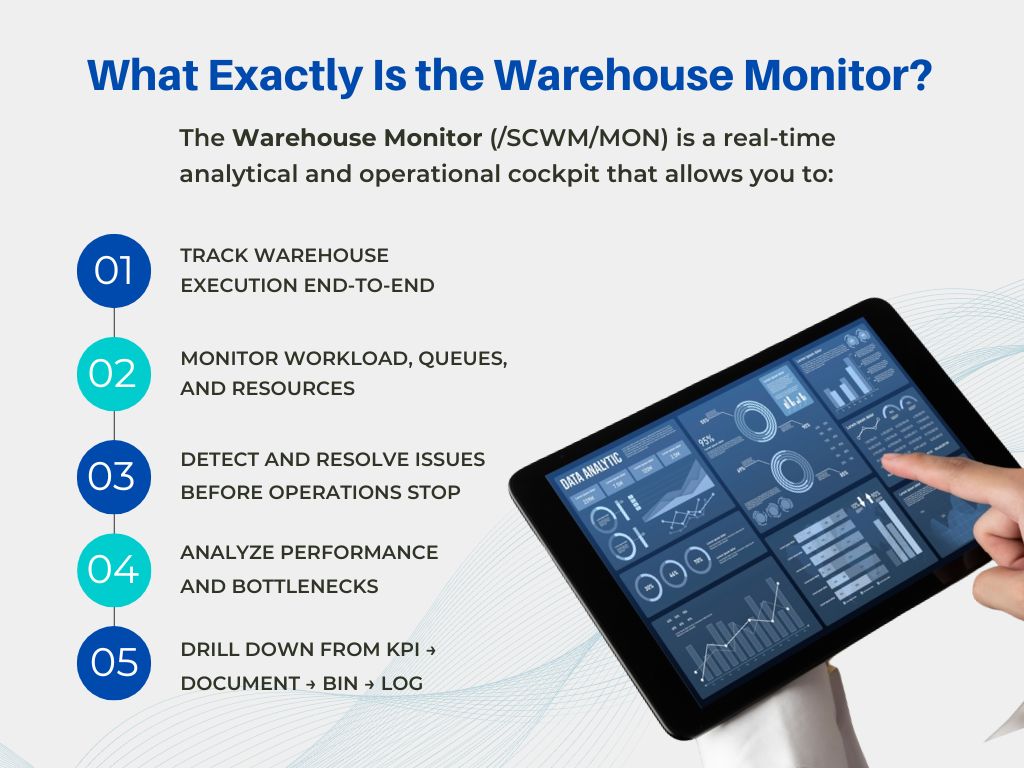
If SAP EWM were a living system, the Warehouse Monitor would be its control room. It’s where execution meets visibility orders, queues, resources, exceptions, and KPIs all converge in one place.
Yet, many teams barely scratch the surface. They use it to check data, not to control the warehouse. That’s the difference between users and EWM experts.
This article breaks down the Warehouse Monitor the way consultants and support leads actually use it on live warehouses, under pressure.
Core Structure: How the Warehouse Monitor Thinks
The Warehouse Monitor is built on nodes—each node represents a logical view of warehouse activity.
1. Monitor Profiles
A Monitor Profile defines:
- Which nodes are visible
- What actions are allowed
- Who can see what
This is how you avoid overwhelming users. A picker, supervisor, and support consultant should never see the same monitor view.
Expert tip:
Create role-based monitor profiles:
- Operations (daily execution)
- Control room (queues & workload)
- Support (errors, logs, inconsistencies)
2. Key Node Categories You Must Master
Warehouse Orders (WOs)
This is the most-used node in real life.
Used for:
- Checking open, confirmed, and failed WOs
- Reassigning queues or resources
- Identifying stuck or unconfirmed tasks
Typical issues spotted here:
- WOs not created due to queue restrictions
- Tasks stuck in “In Process”
- Resource assignment failures
Warehouse Tasks (WTs)
Where micro-level execution lives.
Used for:
- Tracing bin-to-bin movements
- Verifying source/destination bins
- Identifying HU-related issues
When to use WTs instead of WOs:
When execution is correct at order level but physically wrong at bin/HU level.
Queues
Queues decide when work moves.
Used for:
- Monitoring workload per activity
- Detecting blocked or overloaded queues
- Prioritizing urgent warehouse tasks
Real-world scenario:
Outbound picking stops—not because of missing stock, but because the queue is deactivated or overloaded.
Resources
Resources show the human + system side.
Used for:
- Checking resource status (logged in, active, inactive)
- Identifying idle vs overloaded resources
- Reassigning work dynamically
A warehouse with poor resource visibility is a warehouse bleeding time.
Documents & Integration Nodes
These connect EWM with the rest of SAP.
Includes:
- Outbound Deliveries
- Inbound Deliveries
- ERP Integration queues
- qRFC issues
Support goldmine:
Most “EWM issues” are actually integration delays—this is where you prove it.
The Real Power: Drill-Down + Actions
What separates the Warehouse Monitor from reports is contextual actions.
From the same screen, you can:
- Reassign queues
- Cancel or recreate WTs
- Adjust priorities
- Navigate directly to logs
- Jump to related documents
Expert mindset:
Never jump to another transaction unless the Monitor forces you to. 80% of fixes start and end here.
Performance Monitoring & Bottleneck Detection
The Warehouse Monitor is not just reactive—it’s predictive.
Use it to:
- Identify peak-time congestion
- Analyze backlog trends
- Spot repetitive failures
- Improve slotting and labor planning
Consultant insight:
If you wait for users to complain, you’re already late. The Monitor should tell you the story before operations feel the pain.
Common Mistakes in Using the Warehouse Monitor
Even experienced teams make these errors:
- Using standard monitor profiles without customization
- Treating the monitor as a “check tool” instead of a control tool
- Ignoring queue and resource nodes
- Not training users on drill-down logic
- Jumping to /SCWM/EWM_LOG too early
Best Practices from Live Warehouses
- Keep monitor profiles lean and role-based
- Train users on patterns, not screens
- Use the Monitor daily—even when nothing is wrong
- Review failed WOs and WTs as a routine
- Combine Monitor insights with labor planning
Final Thought: Think Like a Control Tower
The Warehouse Monitor is not a transaction—it’s a mindset.
When used correctly, it:
- Reduces downtime
- Improves throughput
- Empowers supervisors
- Cuts support tickets
- Makes EWM predictable, not reactive
In the next part of this Learning Series, we’ll deep-dive into Warehouse Orders vs Warehouse Tasks how execution really flows under the hood.
 English
  French
  Spanish
  Portuguese